
Showing:Grok, plan not chosen.

Watermark in Grok

Which Grok plans have Watermark?

Premium, Super, Ultra, Teams and Enterprise: Yes. Free and Plus: Not checked yet*.

Go to the steps

Your plan

Tell us your plan to see the answer for it.

In each plan

For you

Free
Not checked yet*
Plus
Not checked yet*
Premium
YesWatermark cannot be turned off.
Super
YesWatermark cannot be turned off.
Ultra
YesWatermark cannot be turned off.

For teams, companies and schools

Teams
YesWatermark cannot be turned off.
Enterprise
YesWatermark cannot be turned off.

Source for the checked plans: FAQ - Grok Website / Apps, checked on 20 Oct 2026

Step by step

Pictures from our Grok account (Legacy SuperGrok plan), on the web, 25 Oct 2026. Your screen may look different on another plan or device, or after an update.

  1. Zoom in on the bottom-right corner of the picture.
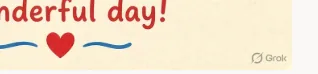
    Grok Imagine picture close-up with a small Grok logo in the bottom-right corner.Open the whole screen for step 1.

    You see the Grok logo at the picture corner.

  2. Open the edited picture in full view.
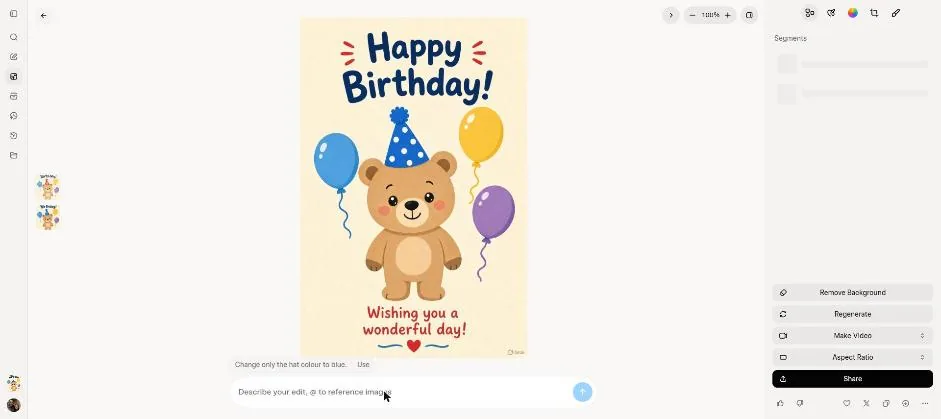
    Grok Imagine edited picture with the small Grok logo visible in the bottom-right corner.Open the whole screen for step 2.

    You see the edited picture with the Grok logo in its corner.

  3. Open the help page section about the Grok logo on images.
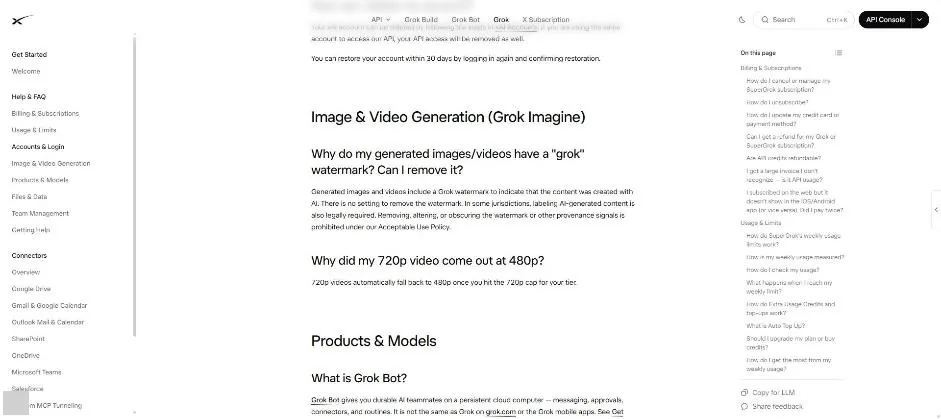
    Grok help page with a question and answer about the Grok logo on images and videos.Open the whole screen for step 3.

    You see the help explanation about the Grok watermark.

Click a picture to see it full size.

See every Grok feature

Change your app or plan

App

We can't see your account. You tell us, and we show what that plan includes. We save your choices in this browser. They may disappear if you clear your browser data or use private browsing.

Report a problem

About:

What's the problem?

Please don't include private information. We keep reports for 90 days and don't store your email or IP address.