
Step-by-step reasoning ("Think") in Grok
Your plan
We haven't checked whether Step-by-step reasoning ("Think") is in Grok Free.
We haven't checked whether Step-by-step reasoning ("Think") is in Grok Plus.
We haven't checked whether Step-by-step reasoning ("Think") is in Grok Premium.
We haven't checked whether Step-by-step reasoning ("Think") is in Grok Super.
We haven't checked whether Step-by-step reasoning ("Think") is in Grok Ultra.
We haven't checked whether Step-by-step reasoning ("Think") is in Grok Teams.
We haven't checked whether Step-by-step reasoning ("Think") is in Grok Enterprise.
Tell us your plan to see the answer for it.
In each plan
We haven't checked which plans include this yet.
Step by step
Open the mode menu and point at Expert.
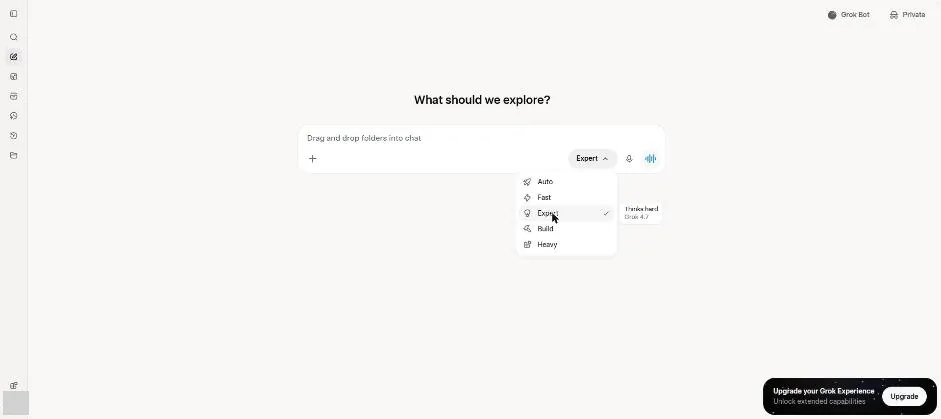
You see the Expert tip describing its thinking mode.
Select Fast and send the pens problem.
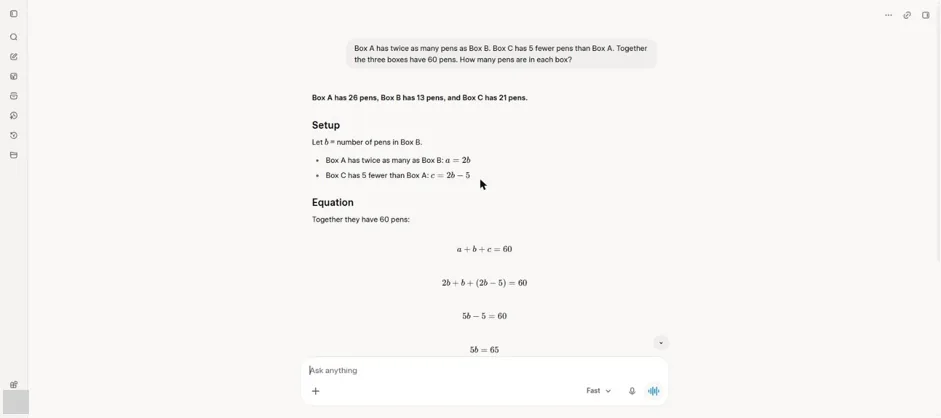
You see a worked answer to the pens problem without a Worked for bar.
Select Expert and send the same problem.
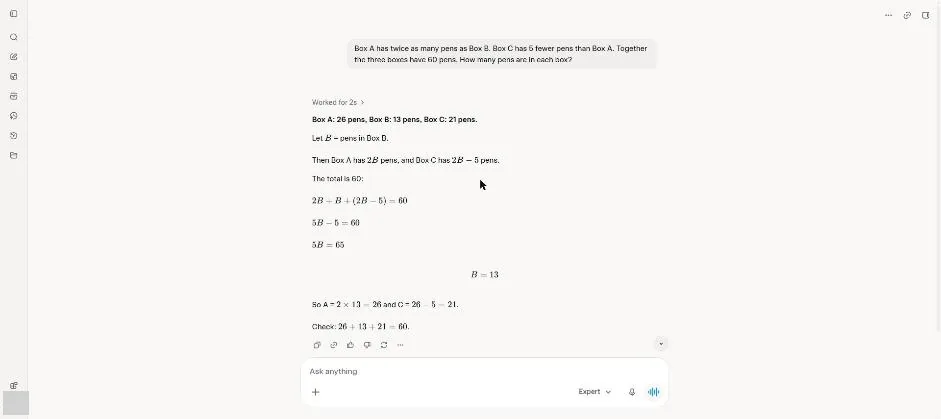
You see the pens answer with a Worked for bar.
Click the Worked for bar.
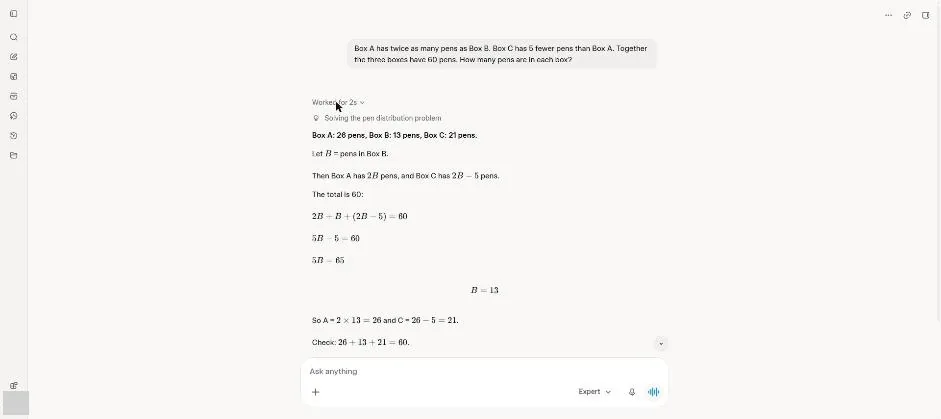
You see a one-line label beneath the Worked for bar.
Click a picture to see it full size.