
Claude Code in Desktop in Claude
Your plan
We haven't checked whether Claude Code in Desktop is in Claude Free.
We haven't checked whether Claude Code in Desktop is in Claude Pro.
We haven't checked whether Claude Code in Desktop is in Claude Max 5x.
We haven't checked whether Claude Code in Desktop is in Claude Max 20x.
We haven't checked whether Claude Code in Desktop is in Claude Team Standard.
We haven't checked whether Claude Code in Desktop is in Claude Team Premium.
We haven't checked whether Claude Code in Desktop is in Claude Enterprise.
Tell us your plan to see the answer for it.
In each plan
We haven't checked which plans include this yet.
Show every plan
For you
| Free | Not checked yet* |
|---|---|
| Pro | Not checked yet* |
| Max 5x | Not checked yet* |
| Max 20x | Not checked yet* |
For teams, companies and schools
| Team Standard | Not checked yet* |
|---|---|
| Team Premium | Not checked yet* |
| Enterprise | Not checked yet* |
Step by step
Open Code, then choose New environment.
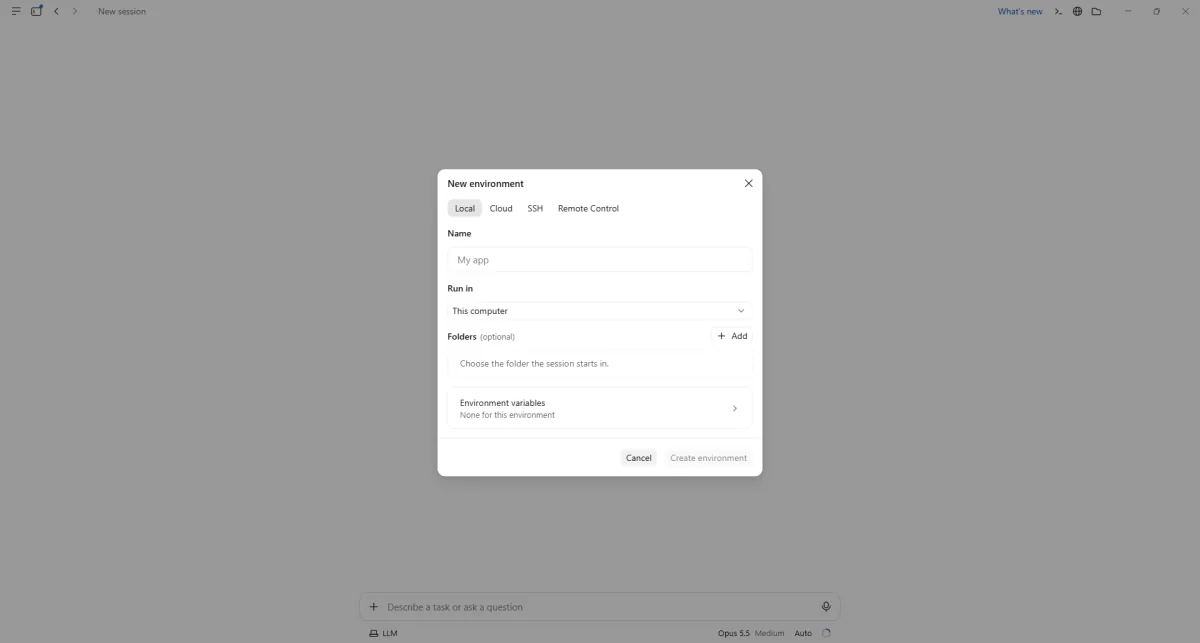
You see an environment form.
Name the environment and choose the test folder.
Bake sale test
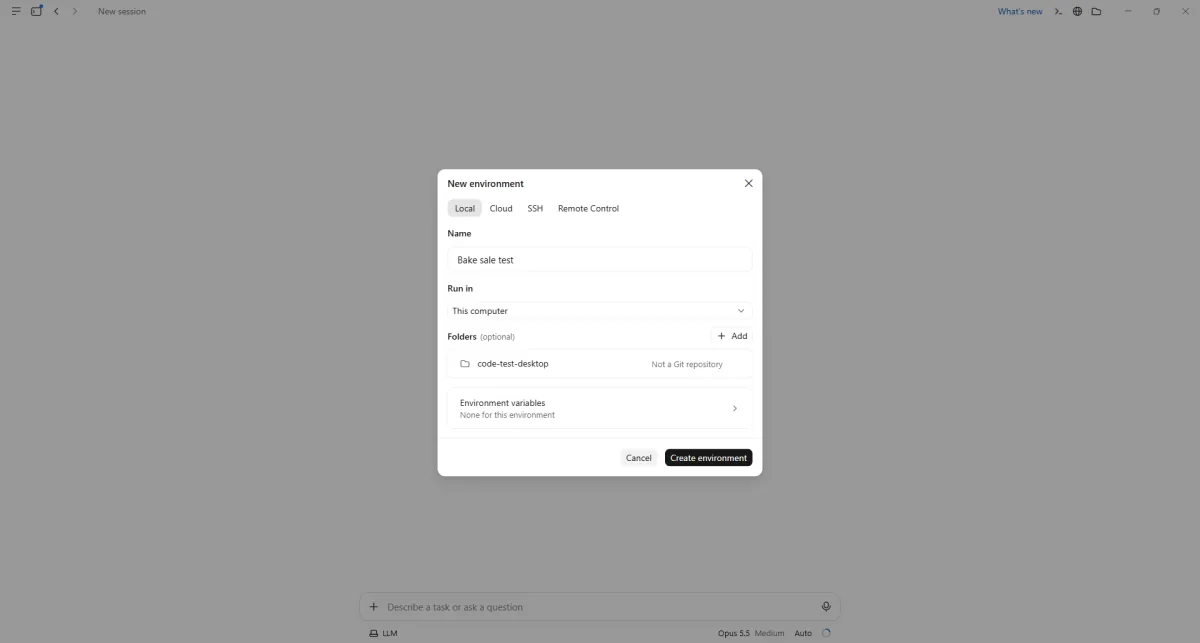
You see the folder and an active Create environment button.
Create the environment and choose Sonnet.
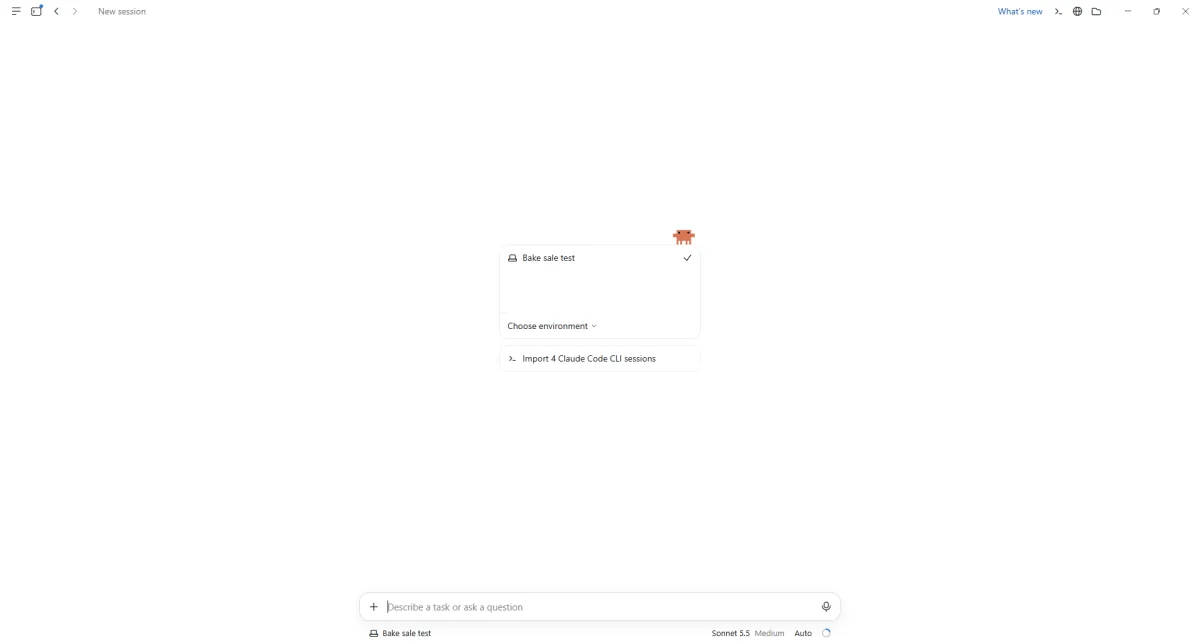
You see Sonnet selected in the bottom bar.
Type and send the bake sale page request.
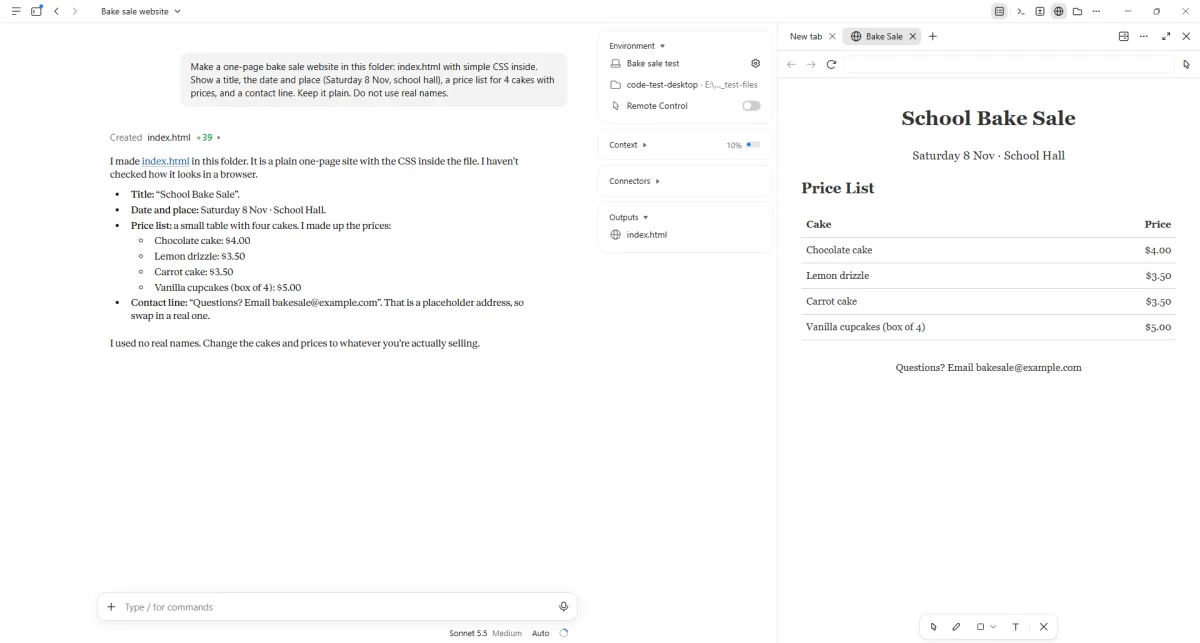
You see the finished page in the built-in browser pane.
Click a picture to see it full size.