
Public links for shared chats in Claude
Your plan
We haven't checked whether Public links for shared chats is in Claude Free.
We haven't checked whether Public links for shared chats is in Claude Pro.
We haven't checked whether Public links for shared chats is in Claude Max 5x.
We haven't checked whether Public links for shared chats is in Claude Max 20x.
We haven't checked whether Public links for shared chats is in Claude Team Standard.
We haven't checked whether Public links for shared chats is in Claude Team Premium.
We haven't checked whether Public links for shared chats is in Claude Enterprise.
Tell us your plan to see the answer for it.
In each plan
We haven't checked which plans include this yet.
Show every plan
For you
| Free | Not checked yet* |
|---|---|
| Pro | Not checked yet* |
| Max 5x | Not checked yet* |
| Max 20x | Not checked yet* |
For teams, companies and schools
| Team Standard | Not checked yet* |
|---|---|
| Team Premium | Not checked yet* |
| Enterprise | Not checked yet* |
Step by step
Start a new chat and send the checklist request.
Write a 5-item checklist for the last day before a team offsite. Short lines only.
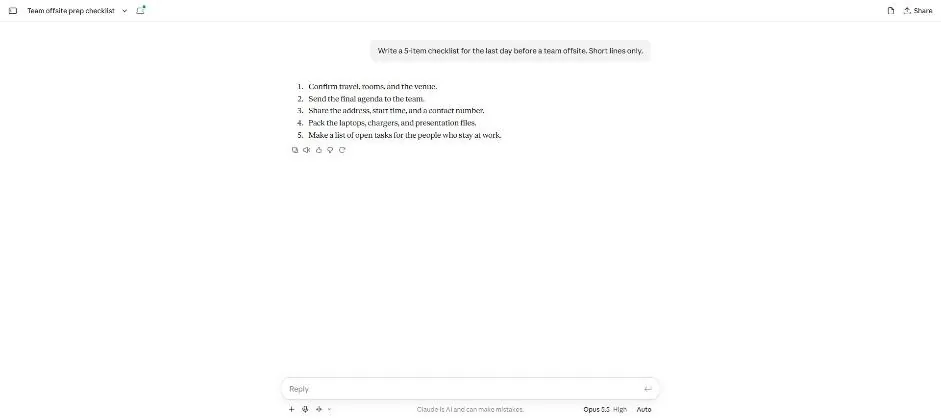
You see a five-item checklist.
Click Share at the top right.
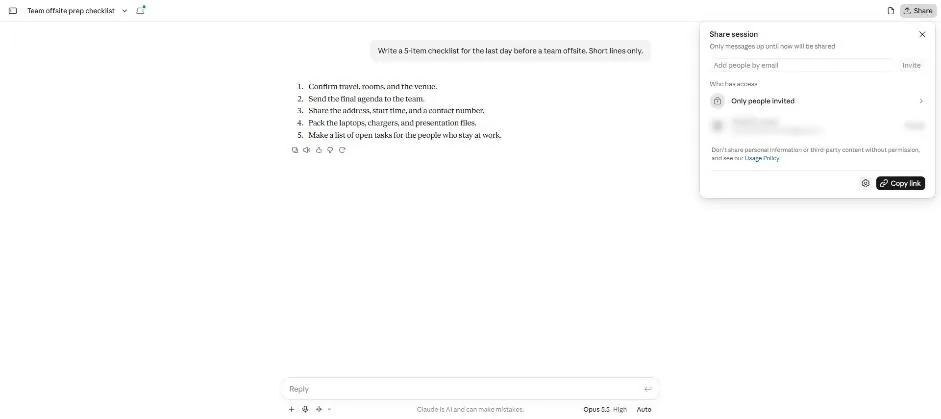
You see the Share session box with access limited to invited people.
Open the access settings and click the access list.
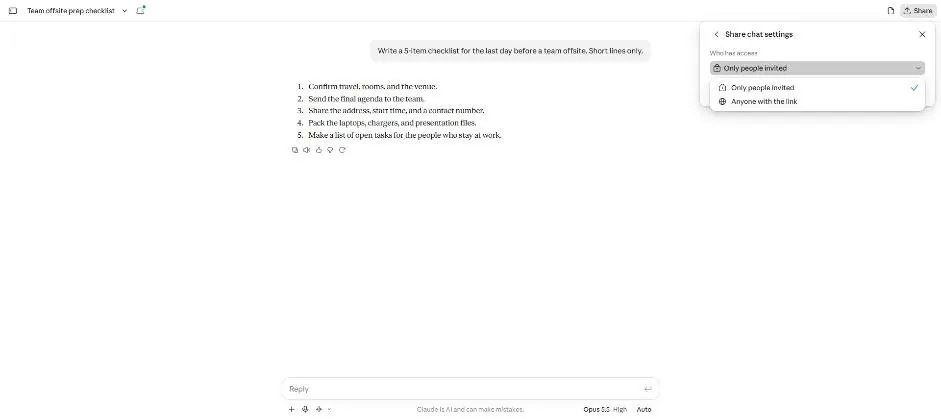
You see the two sharing access choices.
Select Anyone with the link.
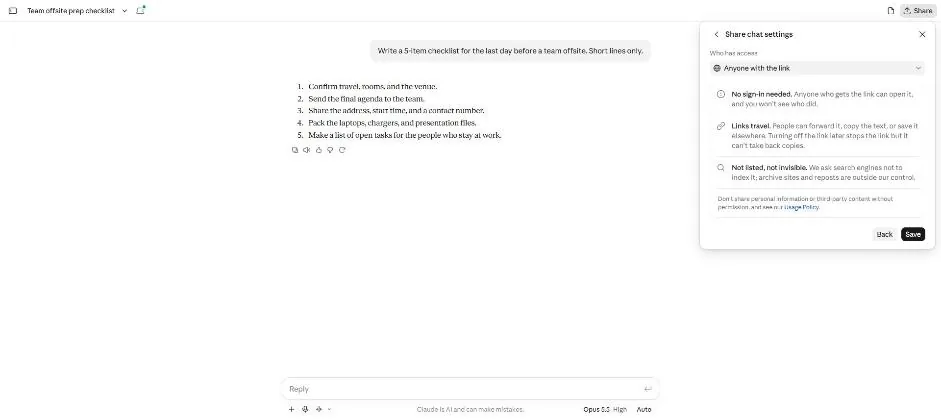
You see the public link warnings and Save button.
Click Save.
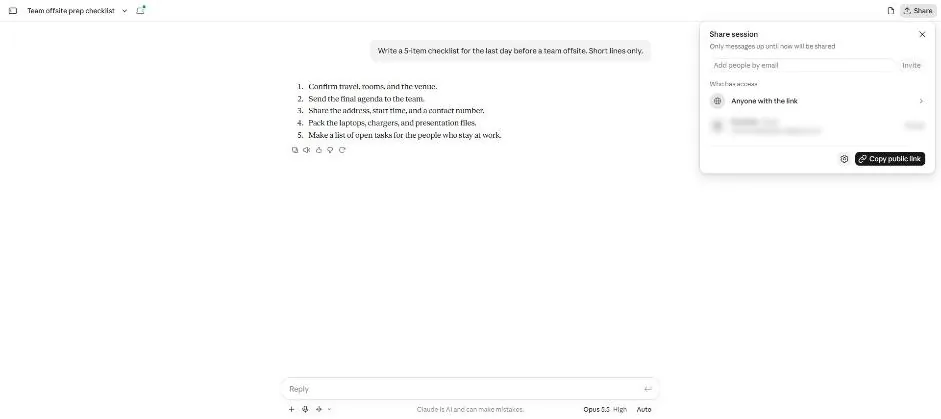
You see Anyone with the link and a Copy public link button.
Click Copy public link.
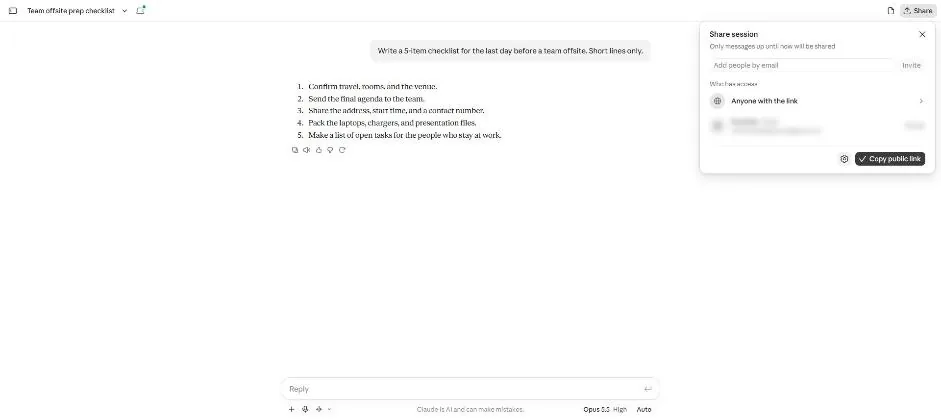
You see a tick on the Copy public link button.
Open the copied link.
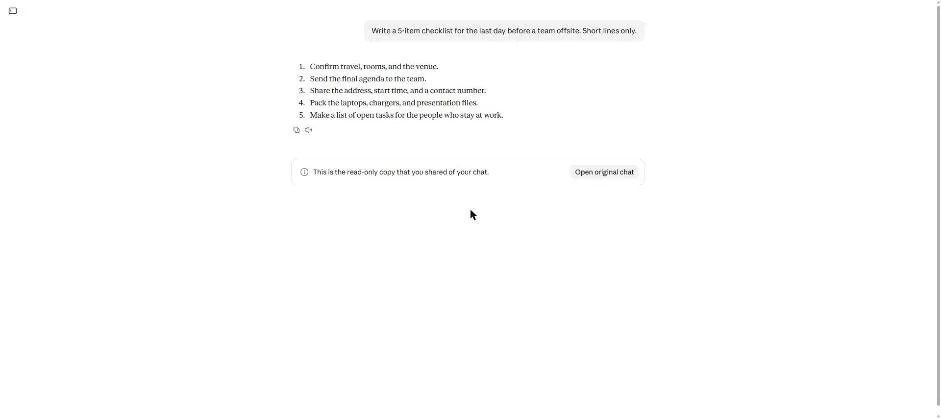
You see the checklist as a read-only shared copy.
Return to the chat and open Share, then access settings.
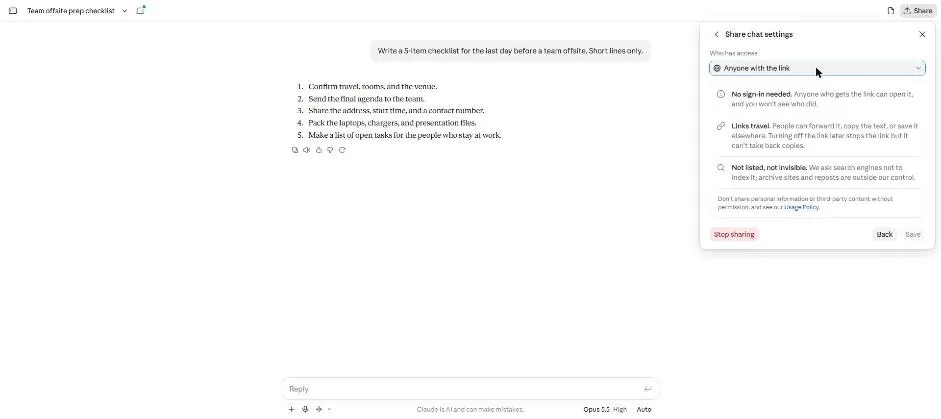
Click Stop sharing.
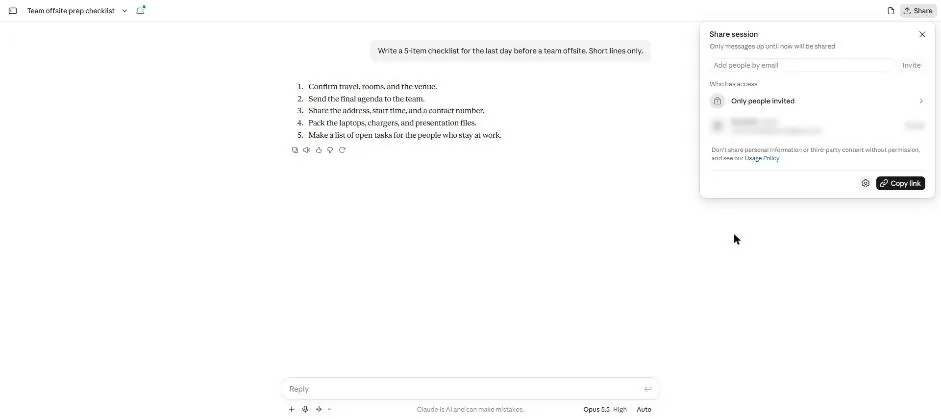
You see access limited to invited people and a Copy link button.
Open the same link again.
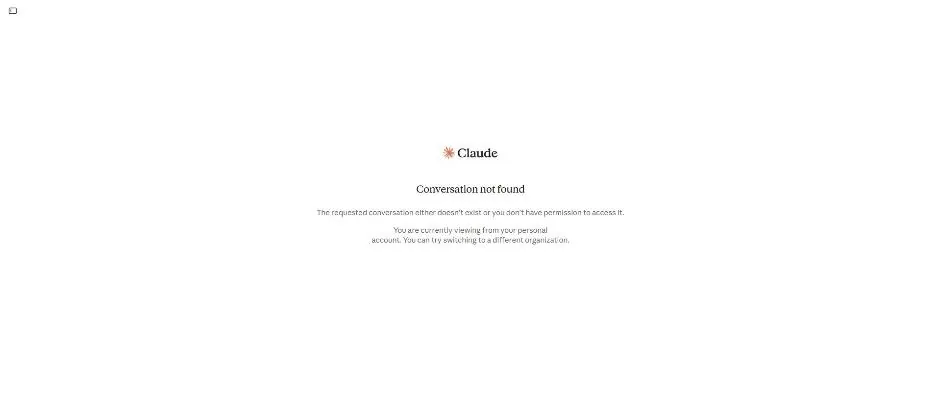
You see a Conversation not found message.
Click a picture to see it full size.