
Import and export memory in Claude
Your plan
We haven't checked whether Import and export memory is in Claude Free.
We haven't checked whether Import and export memory is in Claude Pro.
We haven't checked whether Import and export memory is in Claude Max 5x.
We haven't checked whether Import and export memory is in Claude Max 20x.
We haven't checked whether Import and export memory is in Claude Team Standard.
We haven't checked whether Import and export memory is in Claude Team Premium.
We haven't checked whether Import and export memory is in Claude Enterprise.
Tell us your plan to see the answer for it.
In each plan
We haven't checked which plans include this yet.
Show every plan
For you
| Free | Not checked yet* |
|---|---|
| Pro | Not checked yet* |
| Max 5x | Not checked yet* |
| Max 20x | Not checked yet* |
For teams, companies and schools
| Team Standard | Not checked yet* |
|---|---|
| Team Premium | Not checked yet* |
| Enterprise | Not checked yet* |
Step by step
Open Settings, then Memory.
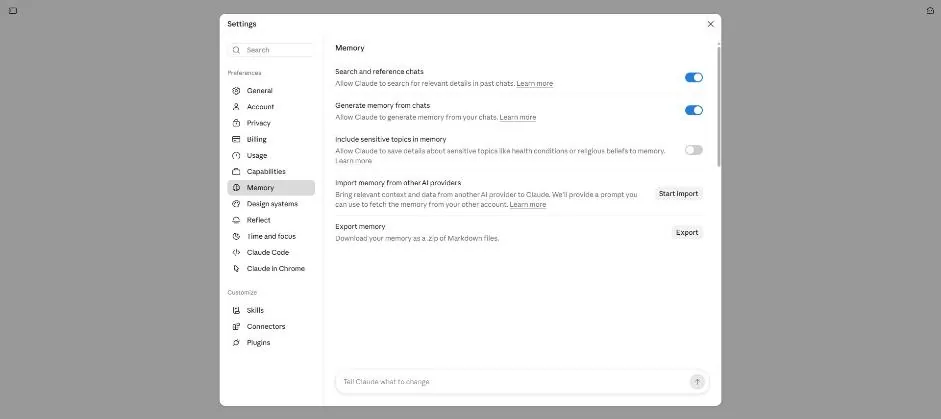
Click Start import.
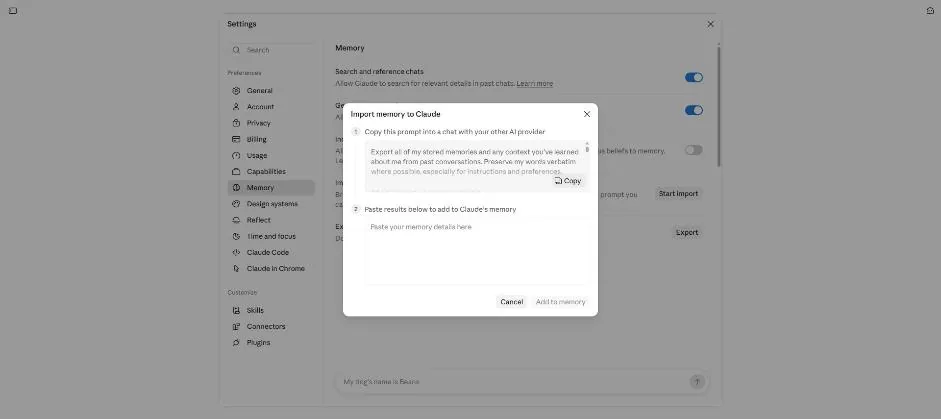
You see the memory import box with a paste field and Add to memory button.
Click a picture to see it full size.