
Opus models in Claude
Your plan
We haven't checked whether Opus models is in Claude Free.
We haven't checked whether Opus models is in Claude Pro.
We haven't checked whether Opus models is in Claude Max 5x.
We haven't checked whether Opus models is in Claude Max 20x.
We haven't checked whether Opus models is in Claude Team Standard.
We haven't checked whether Opus models is in Claude Team Premium.
We haven't checked whether Opus models is in Claude Enterprise.
Tell us your plan to see the answer for it.
In each plan
We haven't checked which plans include this yet.
Show every plan
For you
| Free | Not checked yet* |
|---|---|
| Pro | Not checked yet* |
| Max 5x | Not checked yet* |
| Max 20x | Not checked yet* |
For teams, companies and schools
| Team Standard | Not checked yet* |
|---|---|
| Team Premium | Not checked yet* |
| Enterprise | Not checked yet* |
Step by step
Open a new chat.
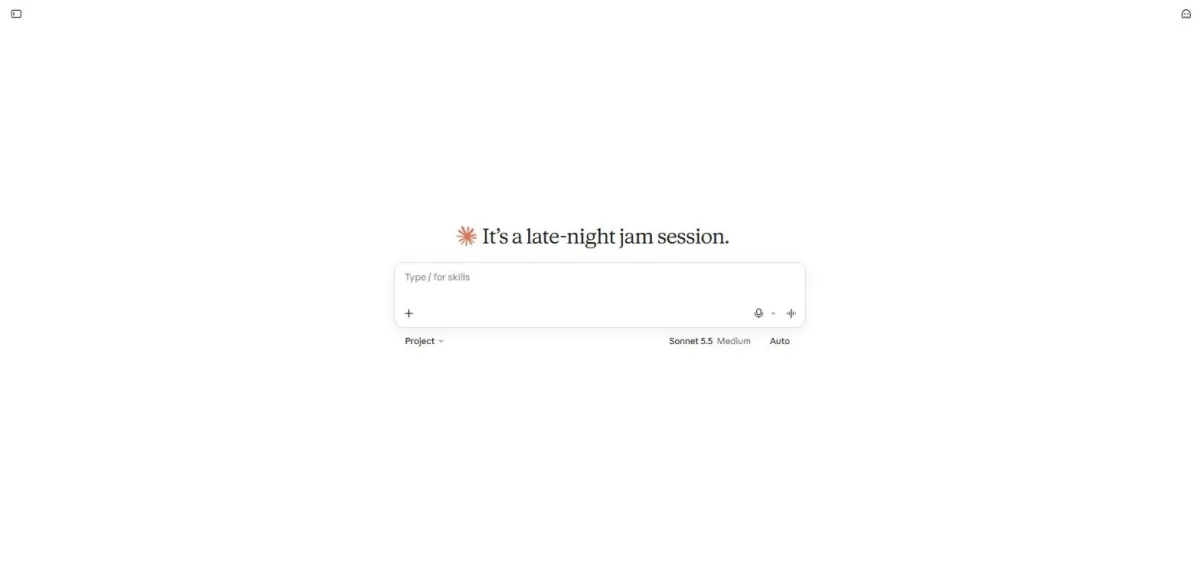
Click the model name below the message box.
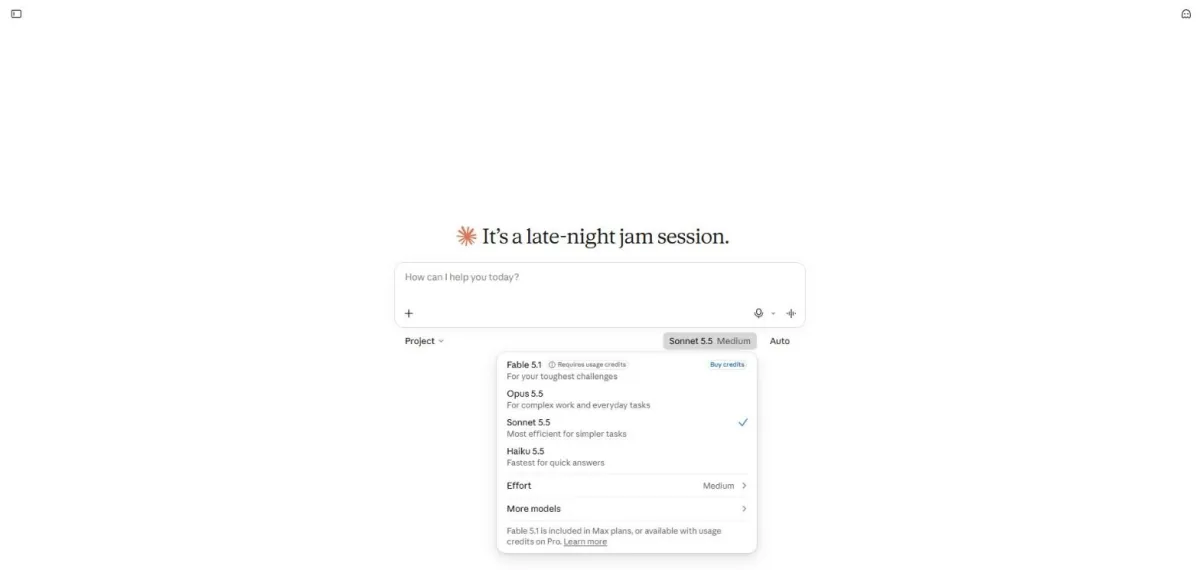
You see the model menu with Sonnet selected.
Select Opus 5.5.

You see Opus selected with High effort.
Paste the plan request and meeting notes.
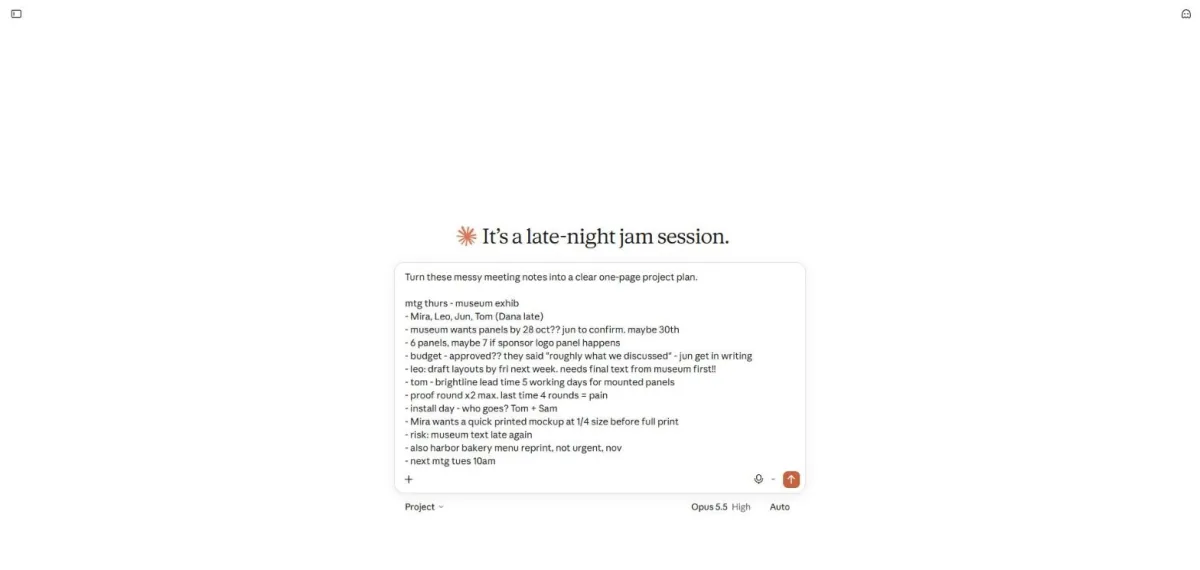
Send the request.
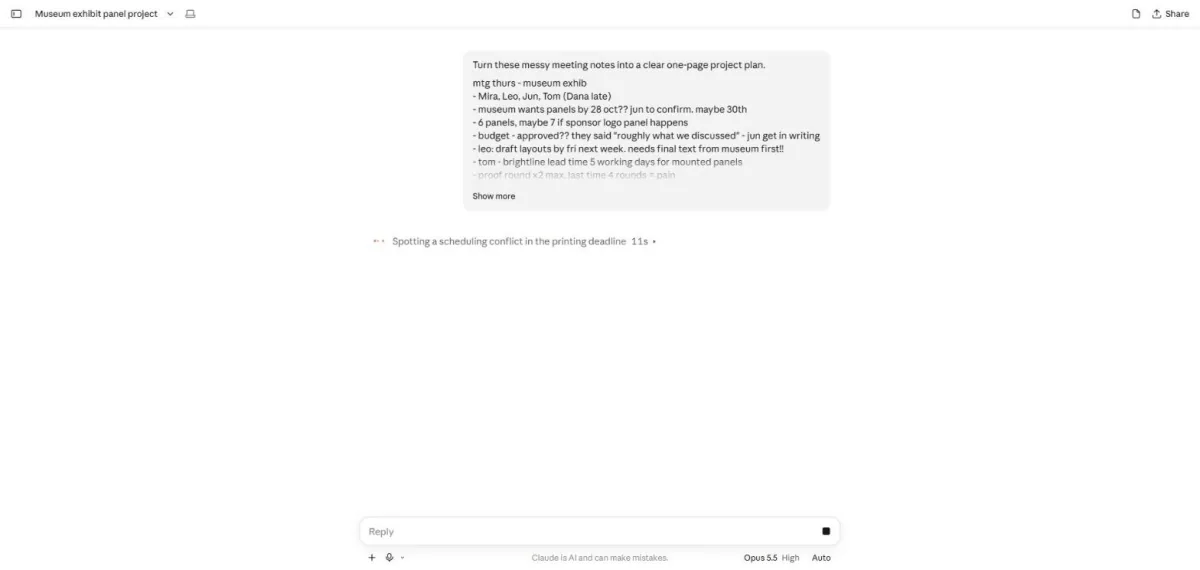
You see a note about a scheduling conflict and a stop button.
Wait about 3 minutes.
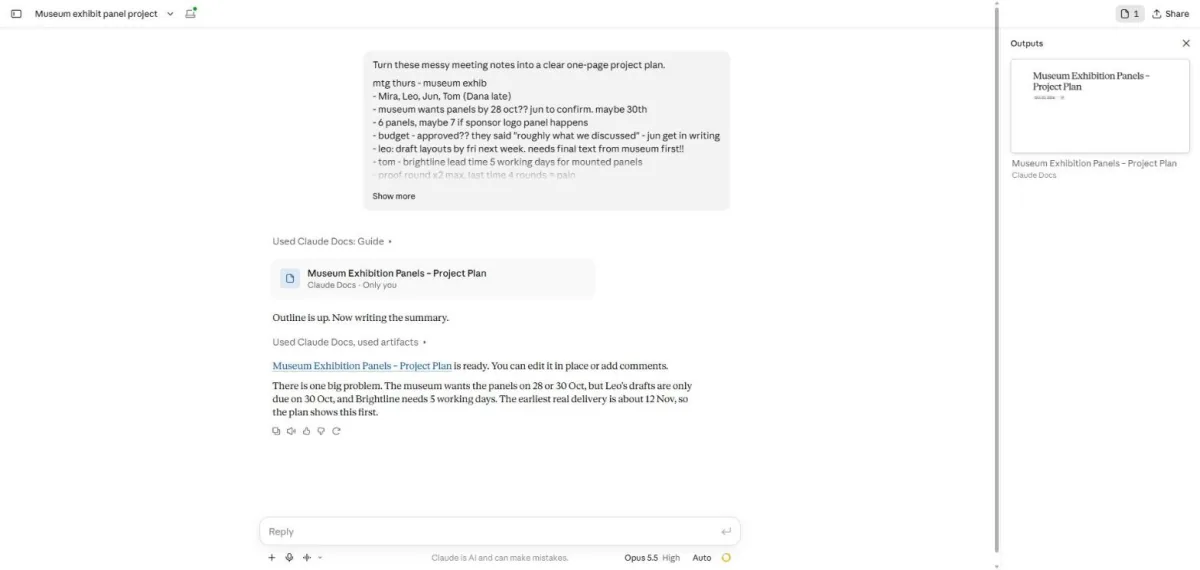
You see a plan document card and a warning that the dates do not match.
Click the plan document card.
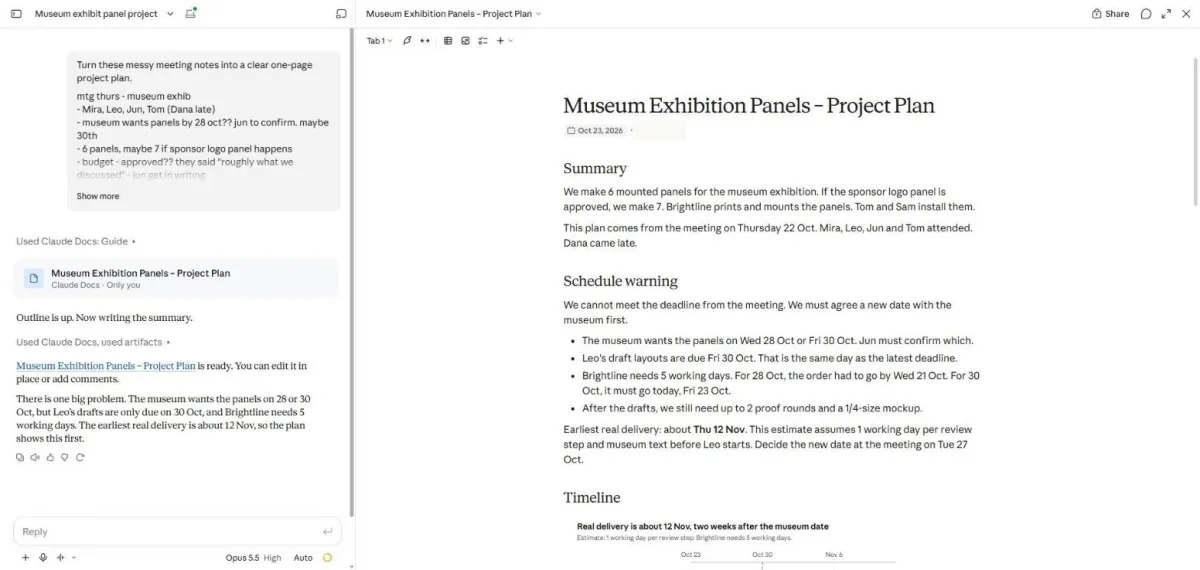
You see the project plan summary and schedule warning.
Scroll down in the plan.
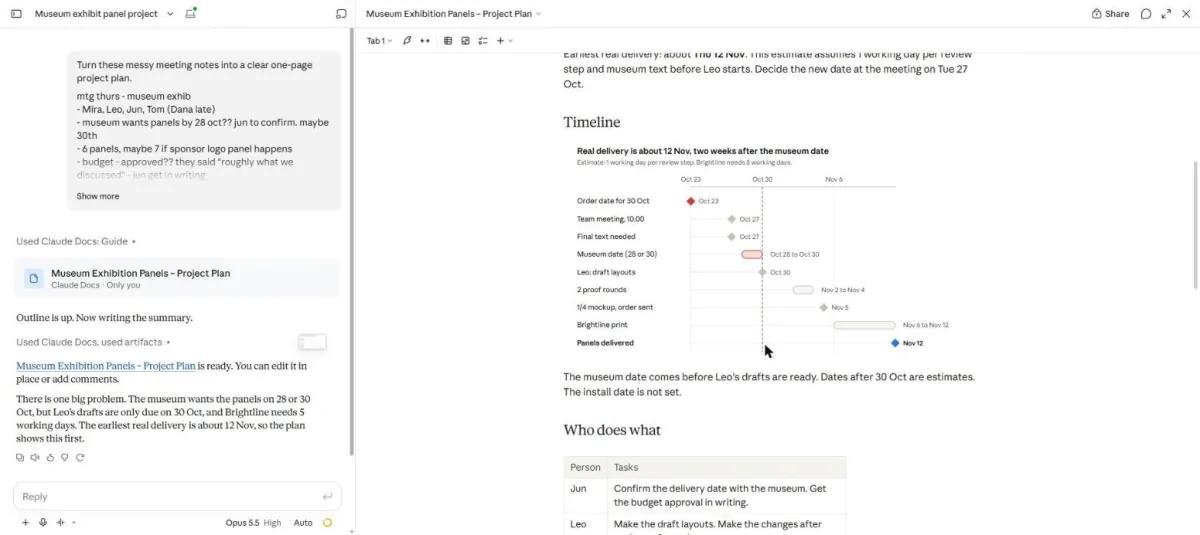
You see a timeline and the start of the task table.
Scroll down to the people table.
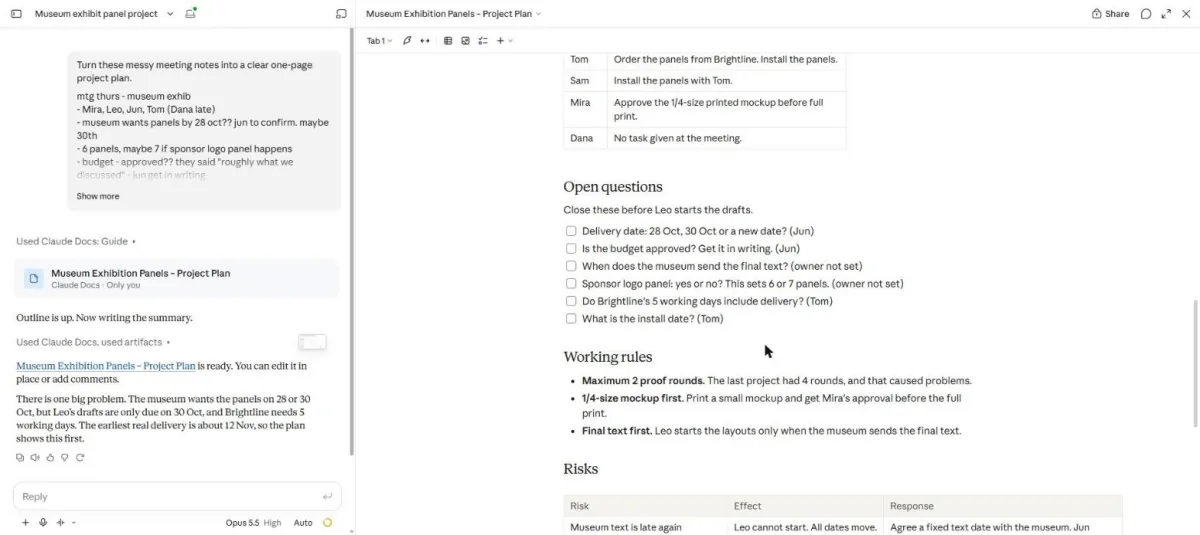
You see the task table, open questions and working rules.
Scroll to the end of the plan.
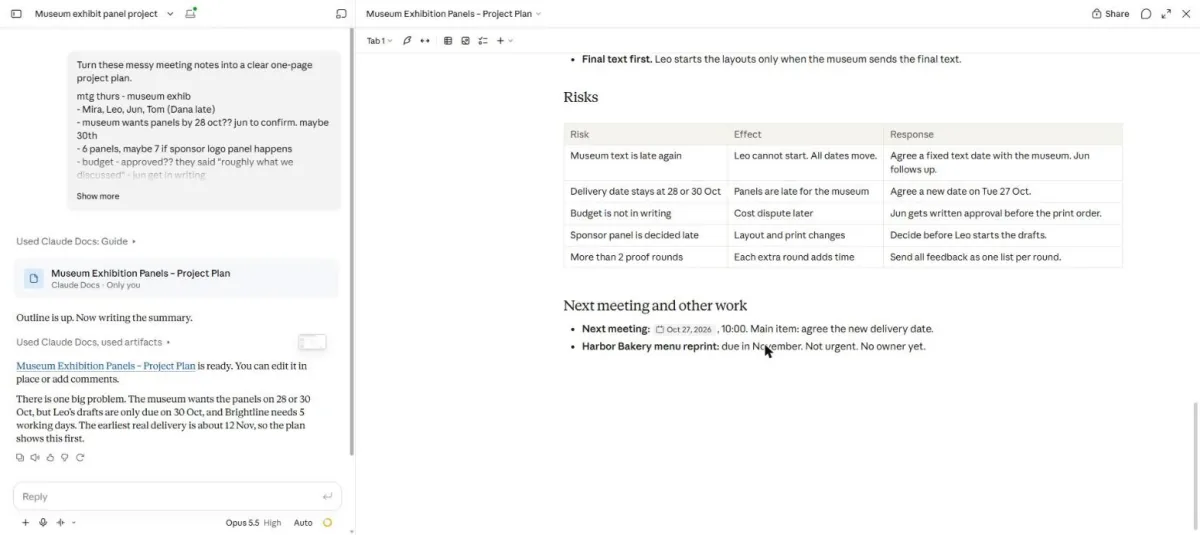
You see the risks table, next meeting and reprint task.
Click a picture to see it full size.