
Effort levels and thinking toggle in Claude
Your plan
We haven't checked whether Effort levels and thinking toggle is in Claude Free.
We haven't checked whether Effort levels and thinking toggle is in Claude Pro.
We haven't checked whether Effort levels and thinking toggle is in Claude Max 5x.
We haven't checked whether Effort levels and thinking toggle is in Claude Max 20x.
We haven't checked whether Effort levels and thinking toggle is in Claude Team Standard.
We haven't checked whether Effort levels and thinking toggle is in Claude Team Premium.
We haven't checked whether Effort levels and thinking toggle is in Claude Enterprise.
Tell us your plan to see the answer for it.
In each plan
We haven't checked which plans include this yet.
Show every plan
For you
| Free | Not checked yet* |
|---|---|
| Pro | Not checked yet* |
| Max 5x | Not checked yet* |
| Max 20x | Not checked yet* |
For teams, companies and schools
| Team Standard | Not checked yet* |
|---|---|
| Team Premium | Not checked yet* |
| Enterprise | Not checked yet* |
Step by step
Click the model name beside the send button.

You see the model menu and Effort row.
Move the pointer over Effort.
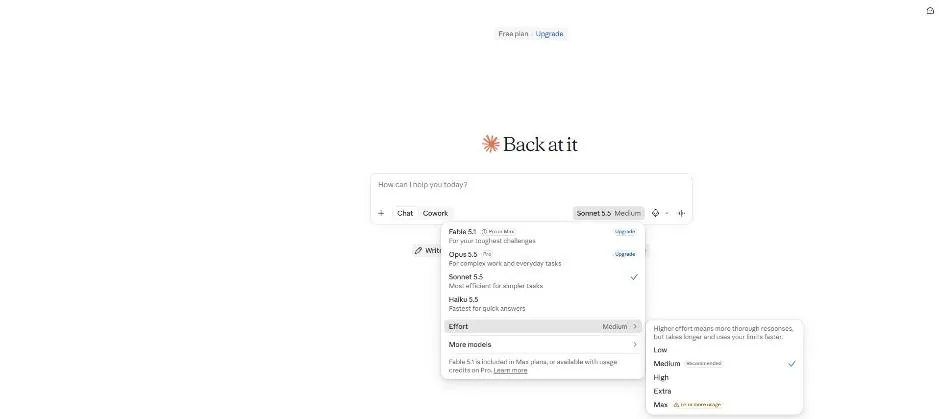
You see five effort levels.
Choose Low and type the train question.
A train leaves at 9:00 at 60 km/h. A second train leaves the same station at 10:30 at 90 km/h on the same track. When does the second train catch up, and how far from the station?

Press Enter.
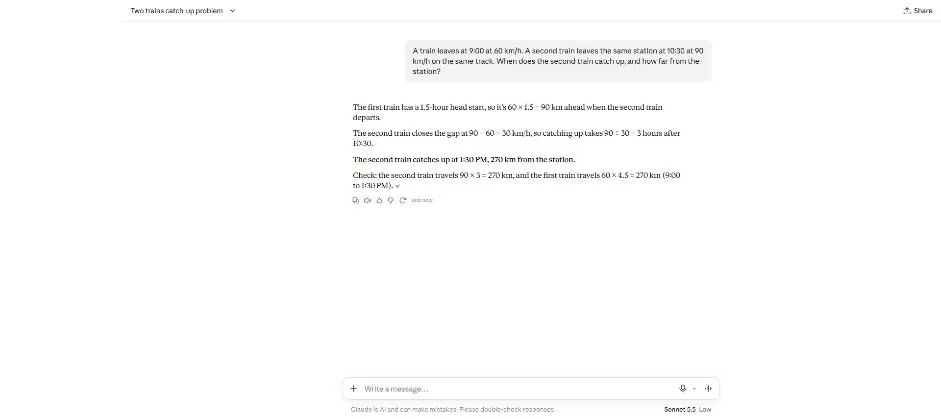
You see a short answer with a catch-up time and distance.
Open a new chat, choose High and type the same question.
A train leaves at 9:00 at 60 km/h. A second train leaves the same station at 10:30 at 90 km/h on the same track. When does the second train catch up, and how far from the station?

Press Enter.
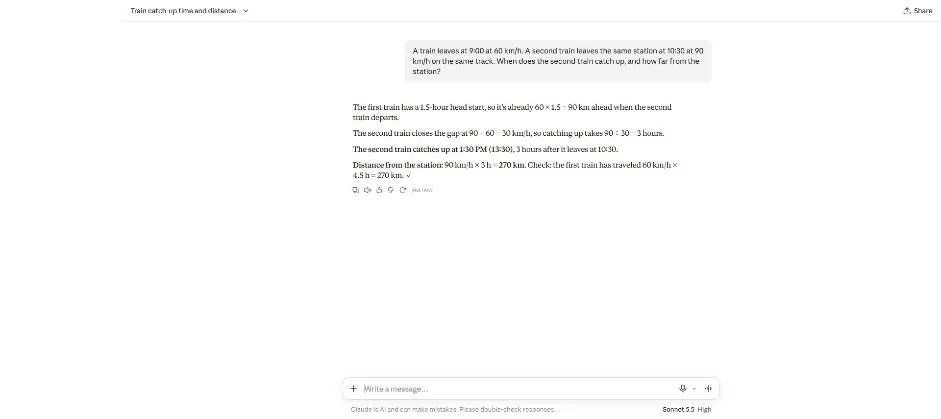
You see an answer with working and a distance check.
Click a picture to see it full size.