
GitHub integration in Claude
Your plan
We haven't checked whether GitHub integration is in Claude Free.
We haven't checked whether GitHub integration is in Claude Pro.
We haven't checked whether GitHub integration is in Claude Max 5x.
We haven't checked whether GitHub integration is in Claude Max 20x.
We haven't checked whether GitHub integration is in Claude Team Standard.
We haven't checked whether GitHub integration is in Claude Team Premium.
We haven't checked whether GitHub integration is in Claude Enterprise.
Tell us your plan to see the answer for it.
In each plan
We haven't checked which plans include this yet.
Show every plan
For you
| Free | Not checked yet* |
|---|---|
| Pro | Not checked yet* |
| Max 5x | Not checked yet* |
| Max 20x | Not checked yet* |
For teams, companies and schools
| Team Standard | Not checked yet* |
|---|---|
| Team Premium | Not checked yet* |
| Enterprise | Not checked yet* |
Step by step
Open the project and click the plus beside Context.
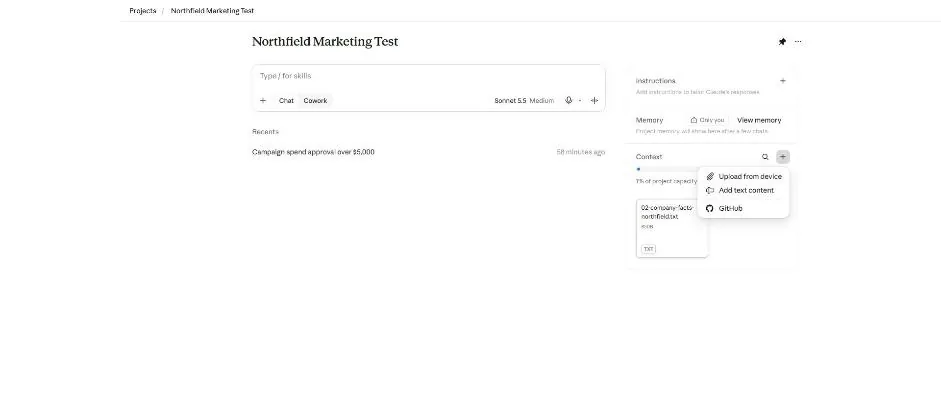
You see a menu with GitHub.
Click GitHub.
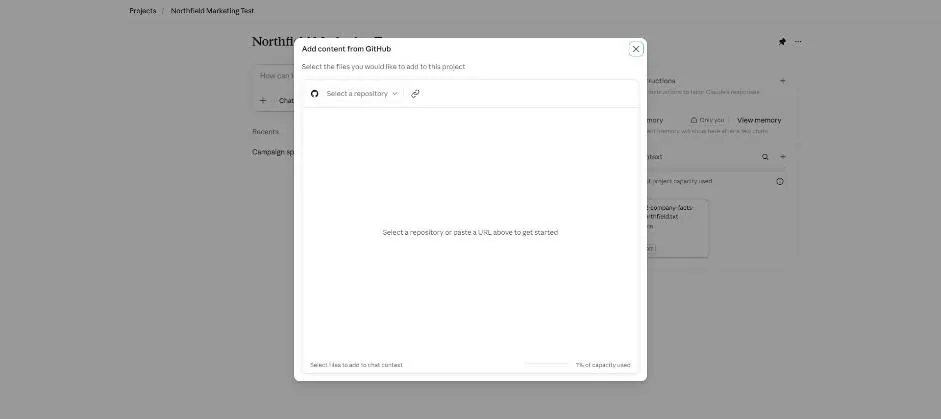
You see a repository picker and link icon.
Paste the public repository link and press Enter.
https://github.com/octocat/Hello-World
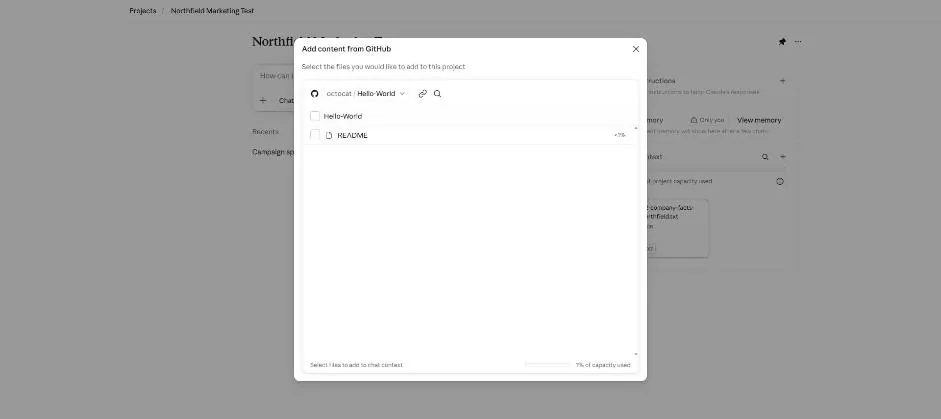
You see the repository and its readme file.
Select the readme file.
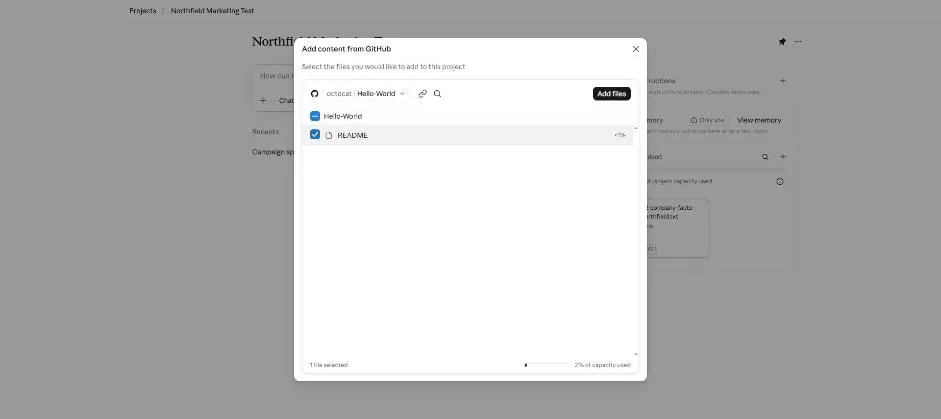
You see the Add files button.
Click Add files.
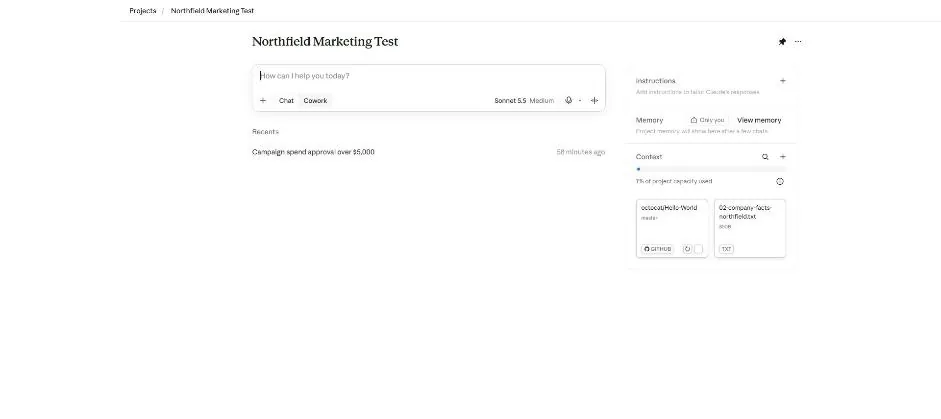
You see the repository card in Context.
Reload the page and ask what the readme says.
What does the README from the GitHub repo say? Answer in one short sentence.
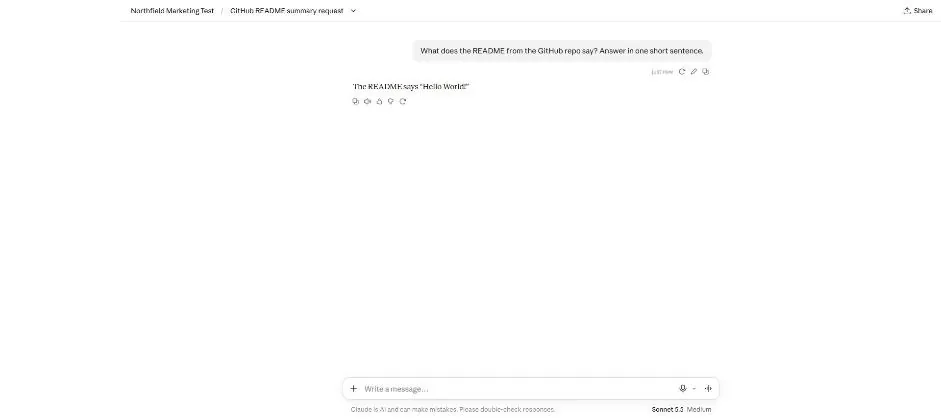
You see a one-sentence answer about the readme.
Click a picture to see it full size.